Is TOKYO FREE Wi-Fi Safe? We Tested It + Free WiFi Tips for Japan
Short answer: Yes. TOKYO FREE Wi-Fi is one of the safest free WiFi options in Tokyo. The Tokyo Metropolitan Government provides it, and it uses a technology called OpenRoaming. Your WiFi connection is encrypted, and it helps protect you from fake hotspots.
However, "safer" does not mean "risk-free." The protection has limits, and the service only works near its hotspots. We tested it on an iPhone and an Android phone in Tokyo. Below, we explain how it works, how to connect step by step with screenshots, and how to check other free WiFi in Japan. All information is as of October 2026.
What Is TOKYO FREE Wi-Fi?
TOKYO FREE Wi-Fi is a free public WiFi service from the Tokyo Metropolitan Government. Wire and Wireless Co., Ltd. (Wi2) operates it.
- Cost: Free, with no time limit (some facilities may not offer it outside their opening hours). If you use mobile data to download the setup file, normal data charges apply.
- Where: Places with a green TOKYO FREE Wi-Fi sticker with a QR code, such as Tokyo Metropolitan Government facilities and some public phone booths. If you cannot find a sticker, check the spot map on the official website.
- Network name (SSID): TOKYO_FREE_Wi-Fi (Android phones may show "TOKYO FREE Wi-Fi"). It shows a lock icon.
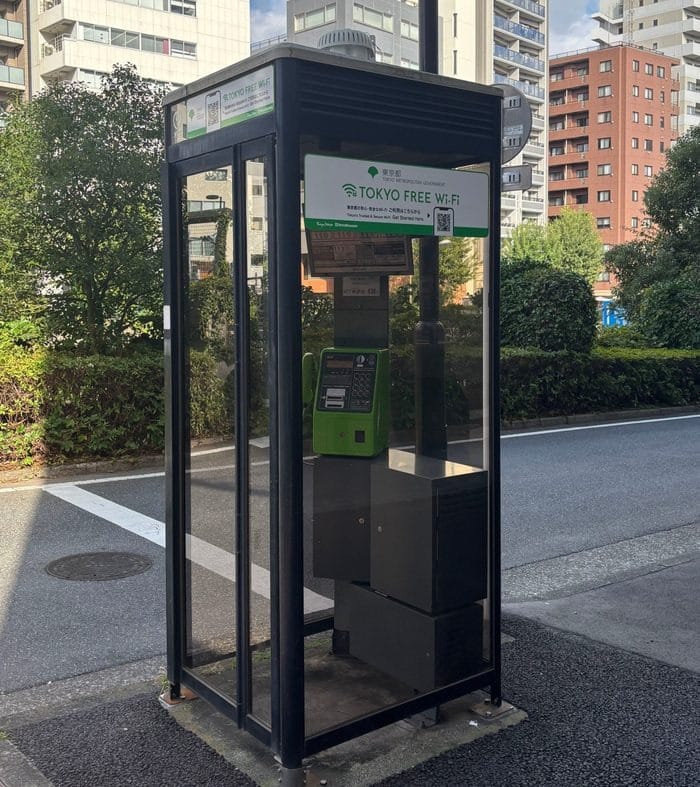
You may also see Tokyo's older network, FREE_Wi-Fi_and_TOKYO. It is a conventional open network without a lock icon. As it does not support OpenRoaming, it does not have the protection described below. Its website closed on 31 March 2026, and the old address redirects to the TOKYO FREE Wi-Fi website until 31 March 2027.
Is TOKYO FREE Wi-Fi Safe? What Makes It Different
Most free WiFi in Japan is easy to join but offers little protection. TOKYO FREE Wi-Fi is different in two ways: the WiFi signal is encrypted, and your device can tell real hotspots from fake ones.
How TOKYO FREE Wi-Fi Keeps You Safe: OpenRoaming and Passpoint
OpenRoaming is an international WiFi system run by the Wireless Broadband Alliance (WBA), a group of WiFi companies. It uses a standard called Wi-Fi CERTIFIED Passpoint. You can think of Passpoint as a safety certification for public WiFi.
During setup, you install a small settings file called a profile. After that, the connection between your device and the hotspot is encrypted. In simple terms, people nearby cannot easily read the data you send over the WiFi signal.
Does TOKYO FREE Wi-Fi Protect You From Fake Hotspots?
Criminals sometimes create fake WiFi networks with trusted-sounding names. With OpenRoaming, your device checks that a hotspot is genuine before it connects. Your profile also works at other OpenRoaming hotspots in Japan and overseas. However, the official FAQ notes that devices running Android 10 or earlier may not work at some OpenRoaming spots overseas.
Is TOKYO FREE Wi-Fi Completely Safe? 5 Limits to Know
- Encryption covers only the WiFi part. After the hotspot, your data travels over the internet as usual. Websites that start with https:// add a second layer of protection.
- The setup network is not encrypted. START_TOKYO_Wi-Fi is an open network for registration only. Remove it from your device after setup.
- The connection can be slow or unstable. It can be slow or fail to connect when the signal is weak or many people are using it.
- Some websites and apps are blocked. A filter to protect young people may block some sites and communication apps.
- You sign up with an account. You use a Google account, Apple ID, or LINE ID. According to the official FAQ, your registration is not made public, and only the information needed for the service is shared with Wi2.
How to Connect to TOKYO FREE Wi-Fi Safely
Setup takes about five minutes, and you only do it once on each device. The screenshots below are from our test on 15 October 2026 with an iPhone 15 and a Samsung Galaxy S24 Ultra. Screens may look a little different on other devices.
Which Devices Can Use TOKYO FREE Wi-Fi (iPhone, Android, PC)
You must install a profile on each device separately. If you change phones, you need to register again.
Step 1: Find the Official Sticker and Scan the QR Code
Look for the green TOKYO FREE Wi-Fi sticker. It says "Tokyo's Trusted & Secure Wi-Fi. Get Started Here" and has a QR code. Scan the QR code with your phone's camera, or open the official website (https://wi-fi.metro.tokyo.lg.jp/en/) and tap "Register Here."
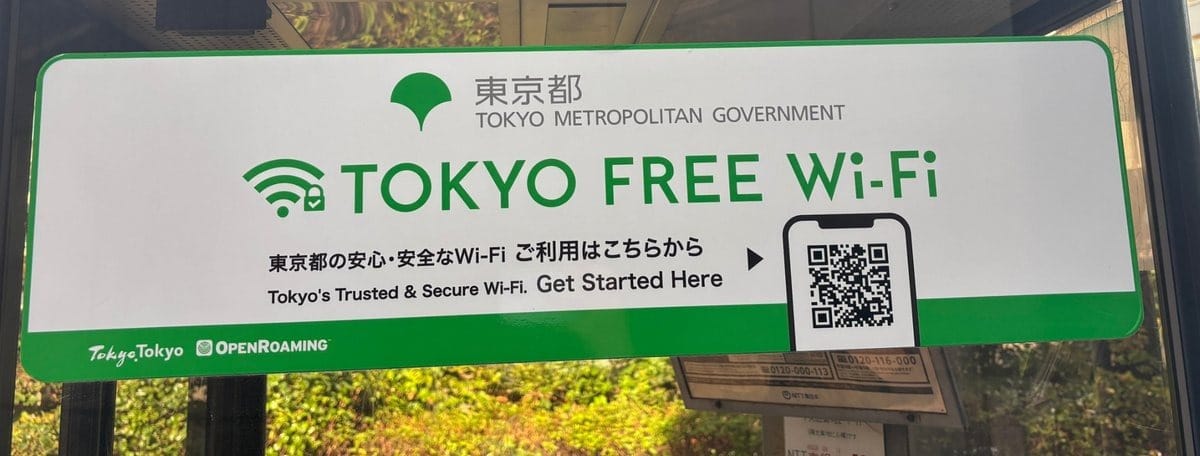
You need an internet connection to register. You can use your mobile data, as we did with the iPhone. If you have no internet, connect to START_TOKYO_Wi-Fi near the sticker. This open network is only for setup, and the setup website opens automatically. It may not be available at times, so using your mobile data is easier if you have it.
Step 2: Agree to the Terms and Verify Your Identity
Agree to the Terms of Use. Then sign in with your Google account, Apple ID, or LINE ID. This is how the service checks that you are a real user. You only need to do this once.
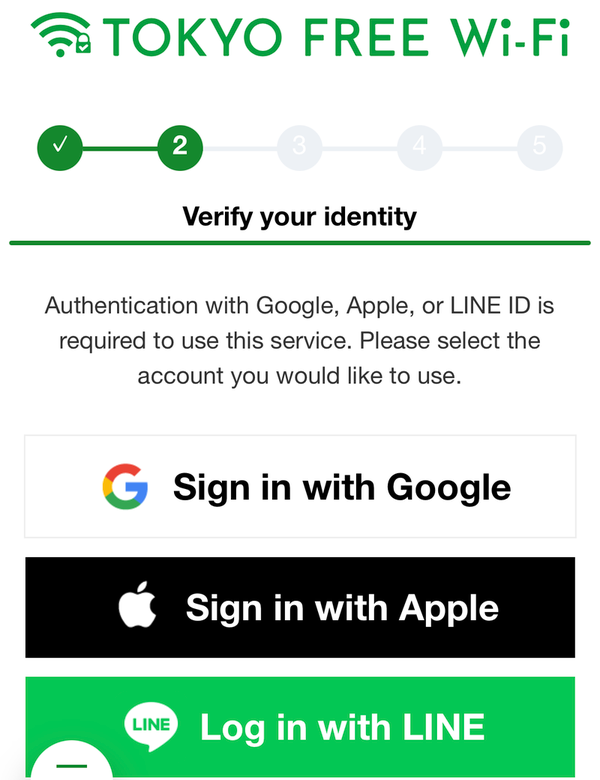
After you sign in, the page asks for your email address before you download the profile. This step is optional. To skip it, tap “Continue without registration.”
Step 3: Download the Profile
Tap the orange "Download" button. The profile is a small settings file. It tells your phone how to find and connect to the real TOKYO FREE Wi-Fi.
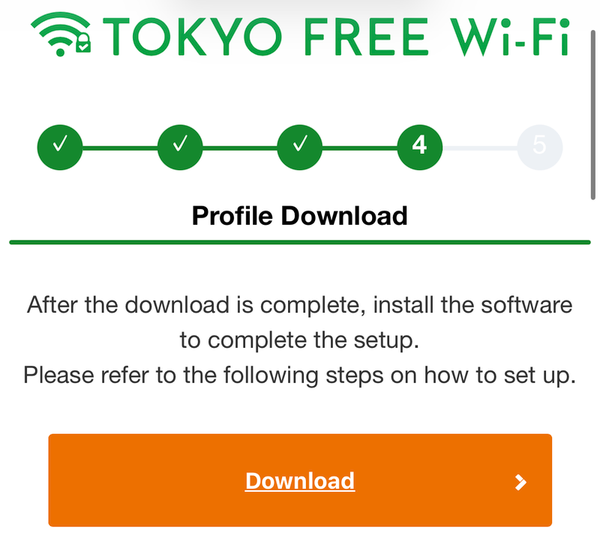
The next step is different on iPhone and Android.
Step 4 (iPhone): Install the Profile in Settings
On iPhone, the profile does not install by itself. You need to finish the setup in the Settings app.
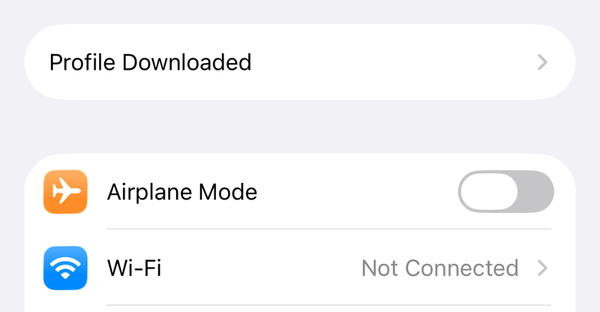
- When you see "Profile Downloaded," tap "Close." Then close the browser.
- Open the Settings app. Tap "Profile Downloaded" near the top.
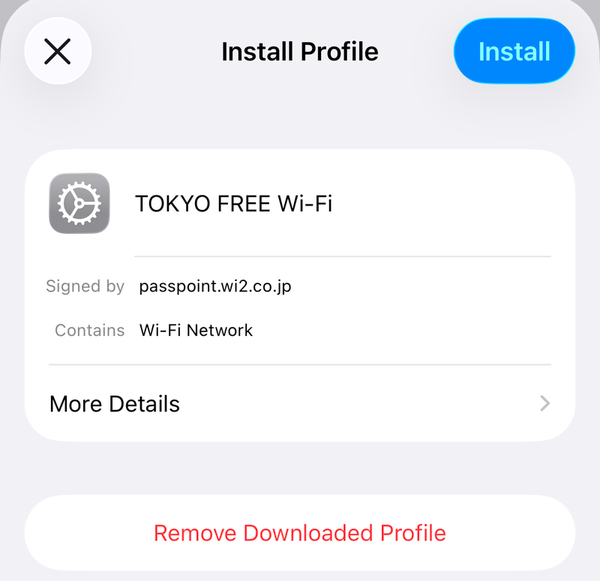
- Check that the profile name is "TOKYO FREE Wi-Fi" and that it says "Signed by passpoint.wi2.co.jp." Then tap "Install."
- Enter your passcode if asked. Tap "Install" again in the message that appears.
- When you see "Profile Installed," the setup is complete.
Step 4 (Android): Install the Certificate
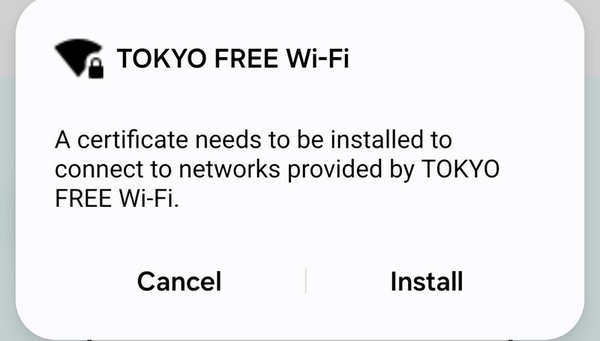
On Android, the installation starts right after the download. Android calls the profile a "certificate." A pop-up says that a certificate is needed to connect to TOKYO FREE Wi-Fi. Tap "Install."
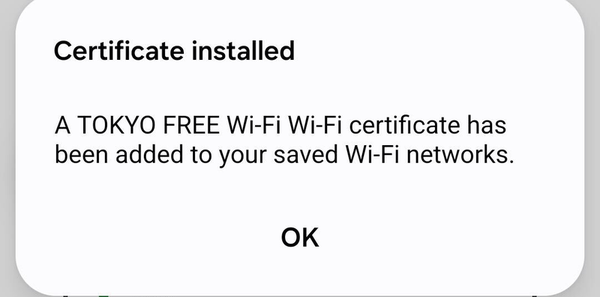
Next, a message says the certificate was added to your saved Wi-Fi networks. Tap "OK."
Step 5: Make Sure You Are on the Safe Network (TOKYO_FREE_Wi-Fi)
Open your Wi-Fi settings near the sticker. You should be connected to TOKYO_FREE_Wi-Fi with a lock icon. Make sure the check mark is next to TOKYO_FREE_Wi-Fi, not the old FREE_Wi-Fi_and_TOKYO.
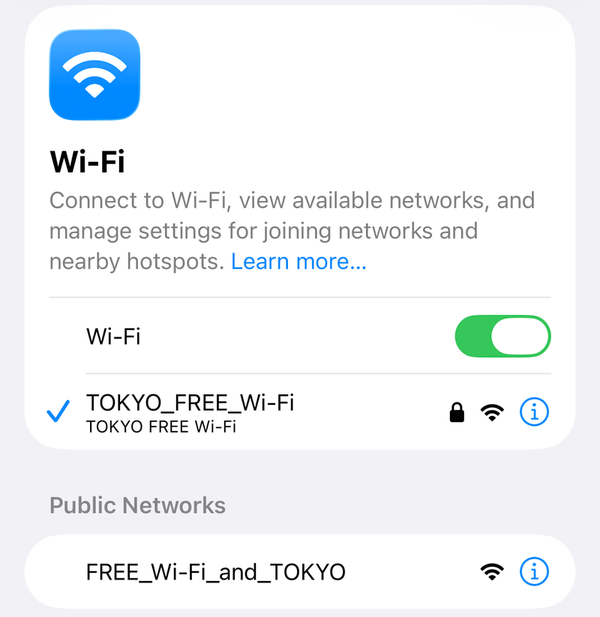
If you registered using START_TOKYO_Wi-Fi, select TOKYO_FREE_Wi-Fi manually this first time. Then delete START_TOKYO_Wi-Fi from your saved networks. After that, your phone connects automatically at TOKYO FREE Wi-Fi spots.
Only install a profile from the official website or the QR code on an official sticker. Before you tap "Install," check the profile name and who signed it (Step 4). Never install a WiFi profile from an unknown link.
We Tested It: How Fast Is TOKYO FREE Wi-Fi?
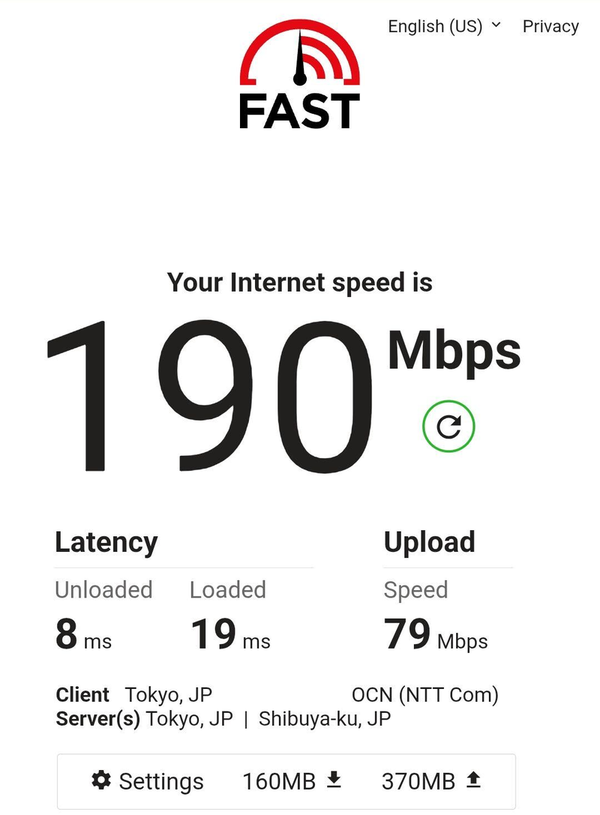
Free WiFi is often slow. So how fast is TOKYO FREE Wi-Fi in real life? On 15 October 2026, around 2 p.m., an eConnect Japan staff member tested it at a public phone booth next to Shintomicho Station (Tsukiji 2-1-17, Chuo City).
TOKYO FREE Wi-Fi Speed Test Results
The result: TOKYO FREE Wi-Fi was fast enough for almost anything you need to do online while traveling.
What These Numbers Mean
- Download (190 Mbps): How fast you receive data, such as web pages, maps, and videos. This speed is more than enough for checking maps, browsing, and watching videos in high quality.
- Upload (79 Mbps): How fast you send data, such as when you post photos to social media or join a video call. You can share your travel photos without long waits.
- Latency (8 ms): How long it takes for your device to get a response. Lower is better. 8 ms is very low, so pages open quickly and video calls feel smooth.
In short, the speed in our test was more than enough to use the internet comfortably. We watched YouTube videos on TOKYO FREE Wi-Fi during the test, and they played without any stops or buffering.
*Speed changes with location, time of day, and the number of users.
Setup on iPhone and Android: How to Spot the Safe Network
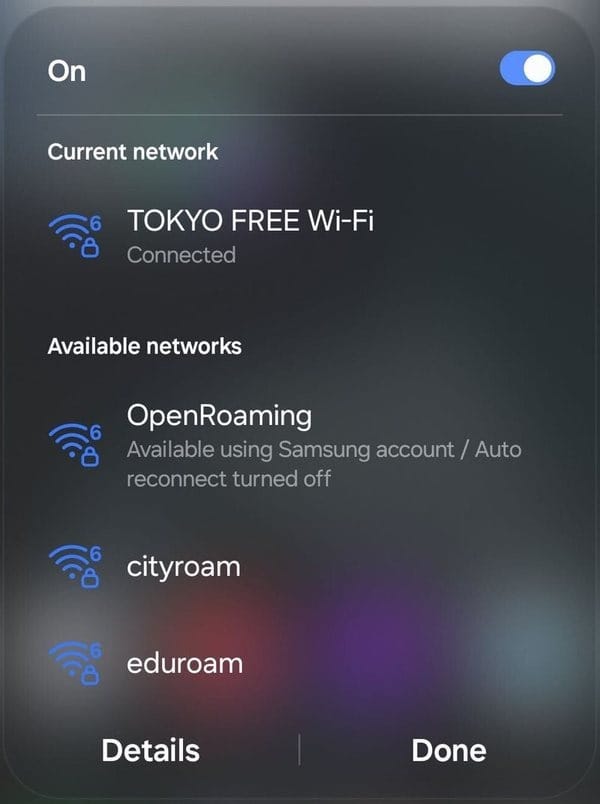
Setup was simple on both iPhone and Android. When we tested on the iPhone 15, it took about 4 minutes from the sign-in screen to being connected. Both phones showed the network with a lock icon: TOKYO_FREE_Wi-Fi on the iPhone and TOKYO FREE Wi-Fi on the Galaxy. The old network, FREE_Wi-Fi_and_TOKYO, also appeared nearby without a lock icon.
The Galaxy also listed networks called OpenRoaming, cityroam, and eduroam at the same spot. You do not need these to use TOKYO FREE Wi-Fi.
How to Remove the TOKYO FREE Wi-Fi Profile After Your Trip
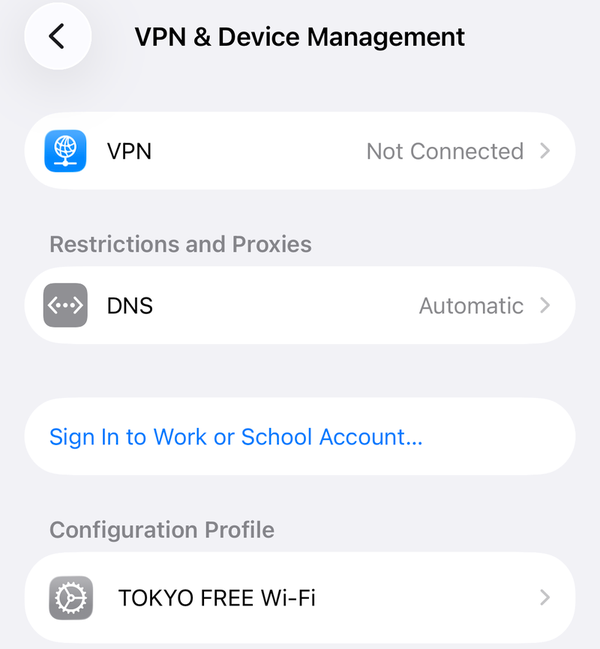
- iPhone / iPad: Settings > General > VPN & Device Management > TOKYO FREE Wi-Fi > Delete Profile
- Android: Settings > Wi-Fi > Saved networks > TOKYO FREE Wi-Fi > Delete
- Windows: Settings > Network & internet > Wi-Fi > Manage known networks > TOKYO FREE Wi-Fi > Remove
- Mac: System Settings > Privacy & Security > Profiles > select TOKYO FREE Wi-Fi > "−" > Delete
Is Other Free WiFi in Tokyo Safe? How to Check a Network
Away from TOKYO FREE Wi-Fi spots, you will find many other free networks in stations, cafes, and hotels. (To find them, see our guide to free WiFi options in Japan.) However, most of them do not offer the same protection as TOKYO FREE Wi-Fi.
Before you connect to other free WiFi, keep these points in mind:
- A lock icon does not always mean a network is safe. If the password is shown on the wall, anyone can join.
- A login page that asks for your email address does not encrypt your connection.
- Fake networks can use names that look almost the same as real ones. Ask staff for the exact network name.
- Check for https:// before you enter a password or card number, and use a VPN on open networks.
For more details and tips, see our guide: How to Stay Safe on Free WiFi in Japan.
Other Ways to Stay Connected Safely in Japan
TOKYO FREE Wi-Fi only works near its hotspots. On trains, between sightseeing spots, or outside Tokyo, your own mobile data is more convenient. You also do not have to judge whether a hotspot is safe, because mobile data is encrypted between your device and the mobile network.
- eSIM (purchase, no return needed): Delivered by email, so there is nothing to pick up. Data only (no calls or SMS). Your phone must support eSIM and be unlocked (not locked to your home carrier).
- Pocket WiFi (rental, must be returned): A small portable router you can share with several devices, such as a laptop and your family's phones. Keep its WiFi password private.
- Prepaid SIM card (purchase, no return needed): A data-only SIM card on the docomo network. Your phone must be unlocked, and you need to enter APN settings (the settings that tell your phone how to connect to the mobile network). Instructions are on the package.
For the latest details on plans, prices, data allowances, and more, please check the eConnect Japan website.
FAQ: TOKYO FREE Wi-Fi Safety and Access
Is TOKYO FREE Wi-Fi safe for online banking and payments?
It is much safer than open free WiFi. The WiFi signal is encrypted, and your bank's website or app adds another layer of protection with https://. Still, only use your bank's official app or website, and check for https:// before you log in.
Do I need a password for TOKYO FREE Wi-Fi?
No. There is no shared WiFi password to type in. Instead, the profile on your device proves who you are. This is one reason it is safer than shop WiFi, where everyone uses the same password.
Can I use TOKYO FREE Wi-Fi at the airport or on the subway?
Only at TOKYO FREE Wi-Fi spots. Look for the green sticker, If you cannot find a sticker, check the spot map on the official website. Airports, train companies, and theme parks run their own free WiFi with different rules.
What should I do if I cannot connect?
Turn WiFi off and on, or move closer to the hotspot. If that does not help, call the Wi2 call center at 0120-839-440 (toll-free, Japanese and English, 8:30 to 19:00 daily). According to the official website, you can call this number from a mobile phone or landline in Japan, but you may not be able to connect from a mobile phone using international roaming. In that case, use Wi2's online contact form.